> ## Documentation Index
> Fetch the complete documentation index at: https://docs-dev-fix-details-to-accordion-universal-components.mintlify.site/llms.txt
> Use this file to discover all available pages before exploring further.

> Learn how to configure a progressive profile form using Forms for Actions

# Use Cases: Configure a progressive profile form using Forms

<Card title="Before you start">
  1. Create a [Machine-to-Machine Application](/docs/get-started/auth0-overview/create-applications/machine-to-machine-apps) with the following scopes enabled:

  * `read:users`
  * `update:users`
  * `create:users`
  * `read:users_app_metadata`
  * `update:users_app_metadata`
  * `create:users_app_metadata`

  2. Add a [Vault connection](/docs/customize/forms/vault) using the M2M application credentials.
</Card>

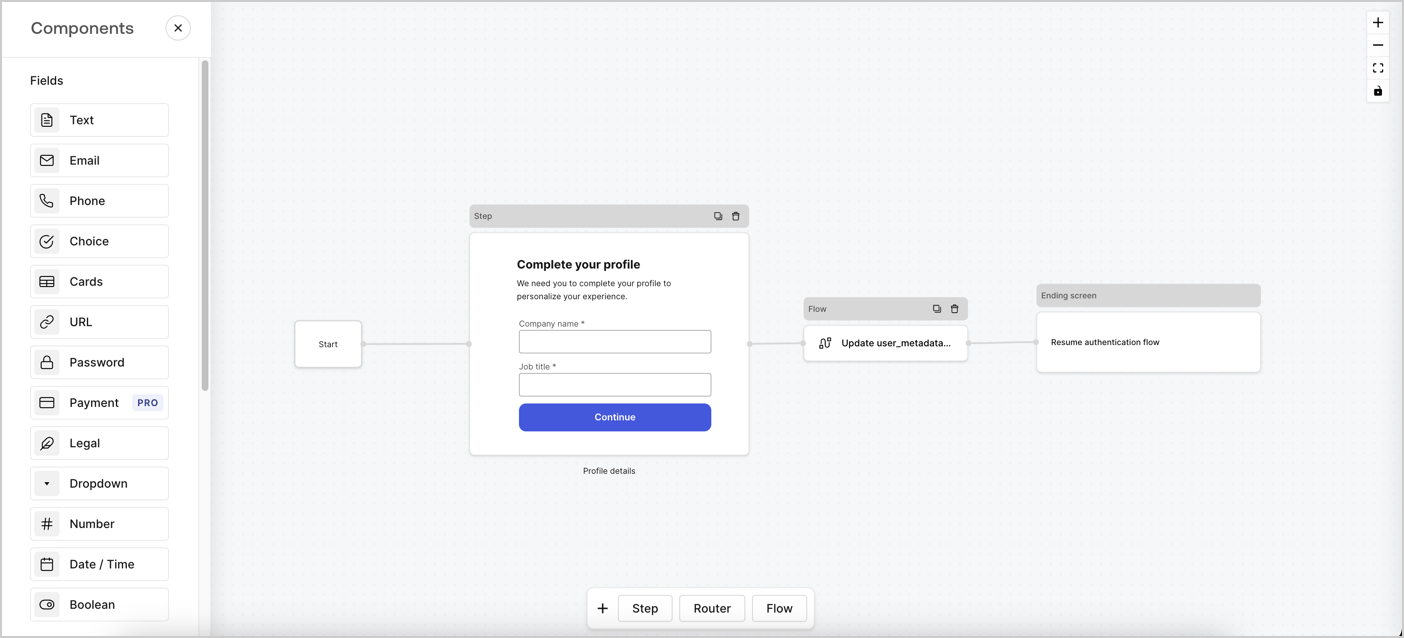
Forms for Actions allows you to create progressive profiling flows to decide when to prompt users to collect missing information, such as company name and job title, and store them as `user_metadata` attributes.
<Frame>
  <img src="https://mintcdn.com/docs-dev-fix-details-to-accordion-universal-components/o4SSTsVQpYk9OAgx/docs/images/cdy7uua7fh8z/xUx9YmnHvnAqL19JvNtNP/60dae88f893d4ebe8e3523421e960596/Progressive-profle-overview.png?fit=max&auto=format&n=o4SSTsVQpYk9OAgx&q=85&s=8ecb3e412c2e30e8ae5c212d6797ff0c" alt="Dashboard > Actions > Forms > Form" data-og-width="1404" width="1404" data-og-height="638" height="638" data-path="docs/images/cdy7uua7fh8z/xUx9YmnHvnAqL19JvNtNP/60dae88f893d4ebe8e3523421e960596/Progressive-profle-overview.png" data-optimize="true" data-opv="3" srcset="https://mintcdn.com/docs-dev-fix-details-to-accordion-universal-components/o4SSTsVQpYk9OAgx/docs/images/cdy7uua7fh8z/xUx9YmnHvnAqL19JvNtNP/60dae88f893d4ebe8e3523421e960596/Progressive-profle-overview.png?w=280&fit=max&auto=format&n=o4SSTsVQpYk9OAgx&q=85&s=1c9798875fe0a0234721c9e56c5575ff 280w, https://mintcdn.com/docs-dev-fix-details-to-accordion-universal-components/o4SSTsVQpYk9OAgx/docs/images/cdy7uua7fh8z/xUx9YmnHvnAqL19JvNtNP/60dae88f893d4ebe8e3523421e960596/Progressive-profle-overview.png?w=560&fit=max&auto=format&n=o4SSTsVQpYk9OAgx&q=85&s=f6d85bc89b285397b52a4087aff648a3 560w, https://mintcdn.com/docs-dev-fix-details-to-accordion-universal-components/o4SSTsVQpYk9OAgx/docs/images/cdy7uua7fh8z/xUx9YmnHvnAqL19JvNtNP/60dae88f893d4ebe8e3523421e960596/Progressive-profle-overview.png?w=840&fit=max&auto=format&n=o4SSTsVQpYk9OAgx&q=85&s=859922f597d4e52c89ef918eef4d22d2 840w, https://mintcdn.com/docs-dev-fix-details-to-accordion-universal-components/o4SSTsVQpYk9OAgx/docs/images/cdy7uua7fh8z/xUx9YmnHvnAqL19JvNtNP/60dae88f893d4ebe8e3523421e960596/Progressive-profle-overview.png?w=1100&fit=max&auto=format&n=o4SSTsVQpYk9OAgx&q=85&s=fe9f862783d44f980d686c7f149b02e9 1100w, https://mintcdn.com/docs-dev-fix-details-to-accordion-universal-components/o4SSTsVQpYk9OAgx/docs/images/cdy7uua7fh8z/xUx9YmnHvnAqL19JvNtNP/60dae88f893d4ebe8e3523421e960596/Progressive-profle-overview.png?w=1650&fit=max&auto=format&n=o4SSTsVQpYk9OAgx&q=85&s=610ba2f9d26c65fa3e13b531e2cdb323 1650w, https://mintcdn.com/docs-dev-fix-details-to-accordion-universal-components/o4SSTsVQpYk9OAgx/docs/images/cdy7uua7fh8z/xUx9YmnHvnAqL19JvNtNP/60dae88f893d4ebe8e3523421e960596/Progressive-profle-overview.png?w=2500&fit=max&auto=format&n=o4SSTsVQpYk9OAgx&q=85&s=e546ea0c8a308e9f1e4c141acbebe503 2500w" />
</Frame>

The sections below outline how you can create a progressive profile form using nodes and flows, along with steps for adding your form to a [Post Login Action](/docs/customize/actions/explore-triggers/signup-and-login-triggers/login-trigger).

## Create a form from scratch

Follow these steps to create a form to gather information:

1. Open the Form editor by selecting **Auth0 Dashboard > Actions > Forms.**
2. Select **Create Form** > **Start from scratch**.

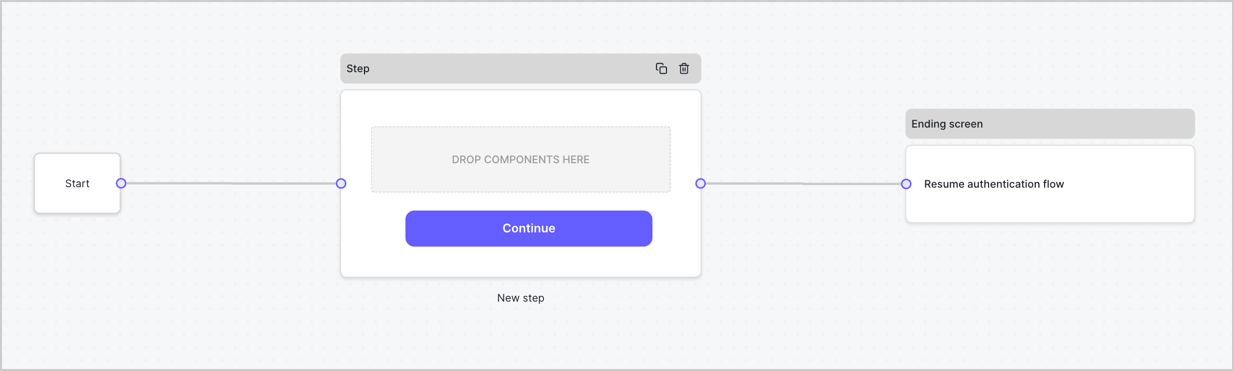
By default, a new form contains a Start node, a Step node, and an Ending screen node.
<Frame>
  <img src="https://mintcdn.com/docs-dev-fix-details-to-accordion-universal-components/VxHXvoklkBgH37_e/docs/images/cdy7uua7fh8z/2TZ9jSjgEcARFpULI6hz4R/a4319a1bd482f2ee5cc23100fdb2f42c/New-form-Forms-for-action-use-case.png?fit=max&auto=format&n=VxHXvoklkBgH37_e&q=85&s=1aadc28e55fc32fb32ab50a136ca33c6" alt="Dashboard > Forms > Use Cases > Form" data-og-width="1234" width="1234" data-og-height="371" height="371" data-path="docs/images/cdy7uua7fh8z/2TZ9jSjgEcARFpULI6hz4R/a4319a1bd482f2ee5cc23100fdb2f42c/New-form-Forms-for-action-use-case.png" data-optimize="true" data-opv="3" srcset="https://mintcdn.com/docs-dev-fix-details-to-accordion-universal-components/VxHXvoklkBgH37_e/docs/images/cdy7uua7fh8z/2TZ9jSjgEcARFpULI6hz4R/a4319a1bd482f2ee5cc23100fdb2f42c/New-form-Forms-for-action-use-case.png?w=280&fit=max&auto=format&n=VxHXvoklkBgH37_e&q=85&s=20e25834a65bf39de4ac19280fe3c386 280w, https://mintcdn.com/docs-dev-fix-details-to-accordion-universal-components/VxHXvoklkBgH37_e/docs/images/cdy7uua7fh8z/2TZ9jSjgEcARFpULI6hz4R/a4319a1bd482f2ee5cc23100fdb2f42c/New-form-Forms-for-action-use-case.png?w=560&fit=max&auto=format&n=VxHXvoklkBgH37_e&q=85&s=64987c32085d4ee9565cdac5cbf6055e 560w, https://mintcdn.com/docs-dev-fix-details-to-accordion-universal-components/VxHXvoklkBgH37_e/docs/images/cdy7uua7fh8z/2TZ9jSjgEcARFpULI6hz4R/a4319a1bd482f2ee5cc23100fdb2f42c/New-form-Forms-for-action-use-case.png?w=840&fit=max&auto=format&n=VxHXvoklkBgH37_e&q=85&s=afdb14add6a63a313bcf300ef931ccc0 840w, https://mintcdn.com/docs-dev-fix-details-to-accordion-universal-components/VxHXvoklkBgH37_e/docs/images/cdy7uua7fh8z/2TZ9jSjgEcARFpULI6hz4R/a4319a1bd482f2ee5cc23100fdb2f42c/New-form-Forms-for-action-use-case.png?w=1100&fit=max&auto=format&n=VxHXvoklkBgH37_e&q=85&s=d9ae97b192c220211d6b83b154788ab5 1100w, https://mintcdn.com/docs-dev-fix-details-to-accordion-universal-components/VxHXvoklkBgH37_e/docs/images/cdy7uua7fh8z/2TZ9jSjgEcARFpULI6hz4R/a4319a1bd482f2ee5cc23100fdb2f42c/New-form-Forms-for-action-use-case.png?w=1650&fit=max&auto=format&n=VxHXvoklkBgH37_e&q=85&s=bc2b079f557a0431bef83a4018e1658c 1650w, https://mintcdn.com/docs-dev-fix-details-to-accordion-universal-components/VxHXvoklkBgH37_e/docs/images/cdy7uua7fh8z/2TZ9jSjgEcARFpULI6hz4R/a4319a1bd482f2ee5cc23100fdb2f42c/New-form-Forms-for-action-use-case.png?w=2500&fit=max&auto=format&n=VxHXvoklkBgH37_e&q=85&s=4cd324a49cdfb7a28c603bfc8bdbc0a3 2500w" />
</Frame>

### Configure the Step node

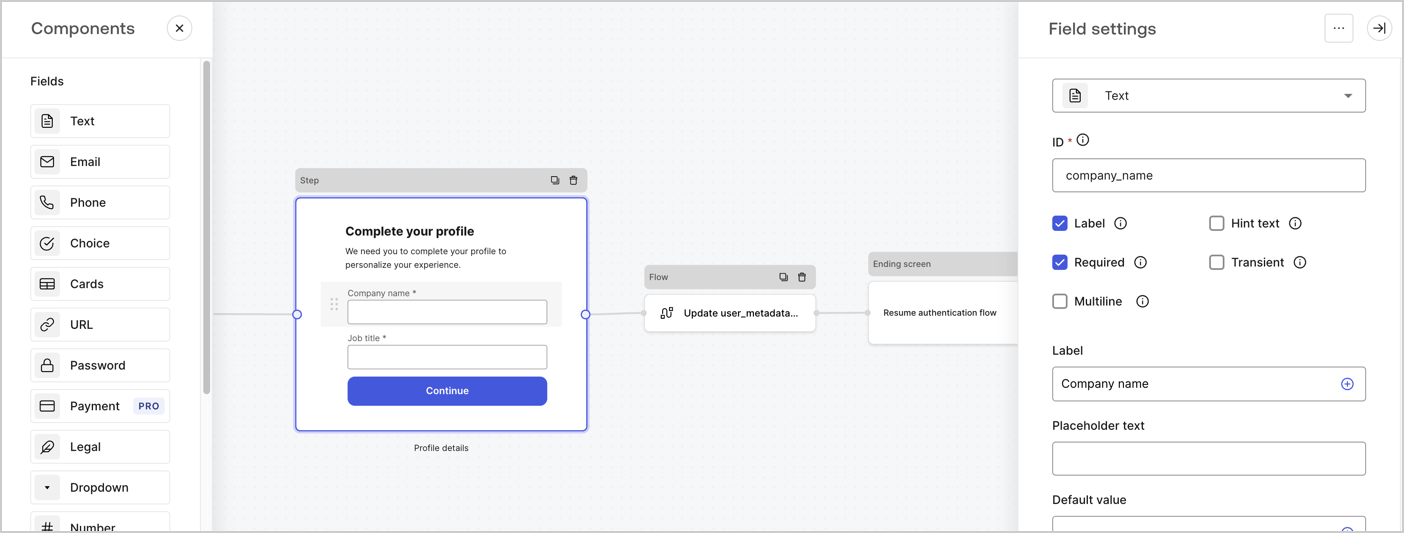
The Step node is the graphical interface visible to users. Add [Fields](/docs/customize/forms/nodes-and-components) to the Step node to collect the user's company name and job title values by following these steps:

1. Drag a **Rich text** field from the **Components menu** into the **Step** node.

   * **Rich text**: Enter a custom message.

     * **Example**: `Complete your profile! We need you to complete your profile to personalize your experience.`
   * Select **Save**.
2. Drag a **Text** field into the **Step** node.

   * **ID**: Enter `company_name`.
   * **Label**: Enable the checkbox.
   * **Label**: Enter `Company name`.
   * **Required**: Enable the checkbox.
   * Select **Save**.
3. Drag a **Text** field into the **Step** node.

   1. **ID**: Enter `job_title`.
   2. **Label**: Enter `Job title`.
   3. **Label**: Enable the checkbox.
   4. **Required**: Enable the checkbox.
   5. Select **Save**.
4. Select **Publish** to save.
<Frame>
  <img src="https://mintcdn.com/docs-dev-fix-details-to-accordion-universal-components/8GJgmIFJNsKlnYig/docs/images/cdy7uua7fh8z/6H1lRzwKyYioQyQJ9MtIoM/aa248e92fc028a68a5b92ff361a11644/progressive-profile-step.png?fit=max&auto=format&n=8GJgmIFJNsKlnYig&q=85&s=89fd4fcd8328cd31a1450bd20e0a77f3" alt="Dashboard > Actions > Forms > Form > Step node" data-og-width="1404" width="1404" data-og-height="533" height="533" data-path="docs/images/cdy7uua7fh8z/6H1lRzwKyYioQyQJ9MtIoM/aa248e92fc028a68a5b92ff361a11644/progressive-profile-step.png" data-optimize="true" data-opv="3" srcset="https://mintcdn.com/docs-dev-fix-details-to-accordion-universal-components/8GJgmIFJNsKlnYig/docs/images/cdy7uua7fh8z/6H1lRzwKyYioQyQJ9MtIoM/aa248e92fc028a68a5b92ff361a11644/progressive-profile-step.png?w=280&fit=max&auto=format&n=8GJgmIFJNsKlnYig&q=85&s=78da6dc3ba8279e72b22281bb5249cbf 280w, https://mintcdn.com/docs-dev-fix-details-to-accordion-universal-components/8GJgmIFJNsKlnYig/docs/images/cdy7uua7fh8z/6H1lRzwKyYioQyQJ9MtIoM/aa248e92fc028a68a5b92ff361a11644/progressive-profile-step.png?w=560&fit=max&auto=format&n=8GJgmIFJNsKlnYig&q=85&s=8e2ea14055cb94cda59d7bdad5e15927 560w, https://mintcdn.com/docs-dev-fix-details-to-accordion-universal-components/8GJgmIFJNsKlnYig/docs/images/cdy7uua7fh8z/6H1lRzwKyYioQyQJ9MtIoM/aa248e92fc028a68a5b92ff361a11644/progressive-profile-step.png?w=840&fit=max&auto=format&n=8GJgmIFJNsKlnYig&q=85&s=e931a7ba884daa38692a972f86c516c4 840w, https://mintcdn.com/docs-dev-fix-details-to-accordion-universal-components/8GJgmIFJNsKlnYig/docs/images/cdy7uua7fh8z/6H1lRzwKyYioQyQJ9MtIoM/aa248e92fc028a68a5b92ff361a11644/progressive-profile-step.png?w=1100&fit=max&auto=format&n=8GJgmIFJNsKlnYig&q=85&s=f53835f6827939614ef37b643476af9d 1100w, https://mintcdn.com/docs-dev-fix-details-to-accordion-universal-components/8GJgmIFJNsKlnYig/docs/images/cdy7uua7fh8z/6H1lRzwKyYioQyQJ9MtIoM/aa248e92fc028a68a5b92ff361a11644/progressive-profile-step.png?w=1650&fit=max&auto=format&n=8GJgmIFJNsKlnYig&q=85&s=694e17f36b5df59a0894730129d405d0 1650w, https://mintcdn.com/docs-dev-fix-details-to-accordion-universal-components/8GJgmIFJNsKlnYig/docs/images/cdy7uua7fh8z/6H1lRzwKyYioQyQJ9MtIoM/aa248e92fc028a68a5b92ff361a11644/progressive-profile-step.png?w=2500&fit=max&auto=format&n=8GJgmIFJNsKlnYig&q=85&s=1fd5ec86e9b318aaa9379a89935dba71 2500w" />
</Frame>

### Configure the flow node

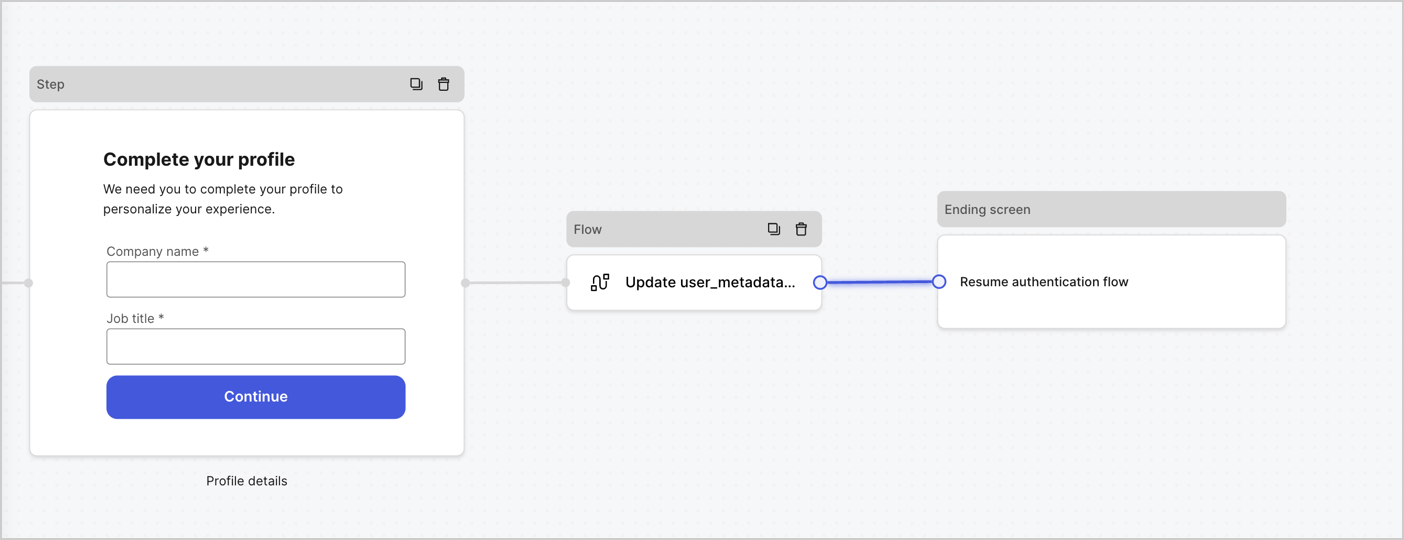
Add a **Flow** node after the **Step** node to update the `user_metadata` and resume the authentication flow by following these steps:

1. Select **Flow** from the bottom of the Form editor.
2. Remove the existing link between the **Step** and **Ending Screen** nodes.
3. Select the new **Flow** > **Click to add a flow** > **Create a new flow.**

   * Enter `Update user_metadata` in the **Name** field.
   * Select **Create**.
   * Select **Save**.
4. Link the **Flow** node to the **Step** and **Ending Screen** nodes as pictured below.
5. Select **Publish** to save.
<Frame>
  <img src="https://mintcdn.com/docs-dev-fix-details-to-accordion-universal-components/5LKKt0iKPaQ-m4ES/docs/images/cdy7uua7fh8z/5C91DaWn4LGtJT9BF87ssu/095171d0c452a287c44bfde12fd6d13f/link-nodes.png?fit=max&auto=format&n=5LKKt0iKPaQ-m4ES&q=85&s=046716164dd98431e0220069a6b6375d" alt="Dashboard > Actions > Forms > Form" data-og-width="1404" width="1404" data-og-height="540" height="540" data-path="docs/images/cdy7uua7fh8z/5C91DaWn4LGtJT9BF87ssu/095171d0c452a287c44bfde12fd6d13f/link-nodes.png" data-optimize="true" data-opv="3" srcset="https://mintcdn.com/docs-dev-fix-details-to-accordion-universal-components/5LKKt0iKPaQ-m4ES/docs/images/cdy7uua7fh8z/5C91DaWn4LGtJT9BF87ssu/095171d0c452a287c44bfde12fd6d13f/link-nodes.png?w=280&fit=max&auto=format&n=5LKKt0iKPaQ-m4ES&q=85&s=7058f0ddc827fc7ef6fcd3613e5727da 280w, https://mintcdn.com/docs-dev-fix-details-to-accordion-universal-components/5LKKt0iKPaQ-m4ES/docs/images/cdy7uua7fh8z/5C91DaWn4LGtJT9BF87ssu/095171d0c452a287c44bfde12fd6d13f/link-nodes.png?w=560&fit=max&auto=format&n=5LKKt0iKPaQ-m4ES&q=85&s=0bf75f344d1c84c9336d1149a85841f8 560w, https://mintcdn.com/docs-dev-fix-details-to-accordion-universal-components/5LKKt0iKPaQ-m4ES/docs/images/cdy7uua7fh8z/5C91DaWn4LGtJT9BF87ssu/095171d0c452a287c44bfde12fd6d13f/link-nodes.png?w=840&fit=max&auto=format&n=5LKKt0iKPaQ-m4ES&q=85&s=6f49b8109ef5b80317f8f7542dc2a8ff 840w, https://mintcdn.com/docs-dev-fix-details-to-accordion-universal-components/5LKKt0iKPaQ-m4ES/docs/images/cdy7uua7fh8z/5C91DaWn4LGtJT9BF87ssu/095171d0c452a287c44bfde12fd6d13f/link-nodes.png?w=1100&fit=max&auto=format&n=5LKKt0iKPaQ-m4ES&q=85&s=d19ba1e05f4f60896d7438e04753a4f8 1100w, https://mintcdn.com/docs-dev-fix-details-to-accordion-universal-components/5LKKt0iKPaQ-m4ES/docs/images/cdy7uua7fh8z/5C91DaWn4LGtJT9BF87ssu/095171d0c452a287c44bfde12fd6d13f/link-nodes.png?w=1650&fit=max&auto=format&n=5LKKt0iKPaQ-m4ES&q=85&s=579d93a9149021bfa5197cb435906499 1650w, https://mintcdn.com/docs-dev-fix-details-to-accordion-universal-components/5LKKt0iKPaQ-m4ES/docs/images/cdy7uua7fh8z/5C91DaWn4LGtJT9BF87ssu/095171d0c452a287c44bfde12fd6d13f/link-nodes.png?w=2500&fit=max&auto=format&n=5LKKt0iKPaQ-m4ES&q=85&s=c229a3b1537e48afc6fb5a61d2bbfd6f 2500w" />
</Frame>

Add an Auth0 Update user action to the flow by following these steps:

1. Select the **Update user\_metadata** flow, then select the **Edit Flow** to open the Flow editor in a new tab.
2. Below the **Start** action, select the **+** icon to add an **Update user** action. Complete the fields below, then select **Save** to continue.

   * **Connection**: Select from the dropdown the Vault connection to your M2M application.

   * **User ID**: Enter `{{context.user.user_id}}`.

   * **Body**: Copy and paste the following code to update the user\_metadata with `job_title` and `company_name` properties.

     ```json lines theme={null}
     {
        "user_metadata": {
           "job_title": "{{fields.job_title}}",
           "company_name": "{{fields.company_name}}"
        }
     }
     ```

   * Select **Save**.
3. Select **Publish** to save.

<Frame>
  <img src="https://mintcdn.com/docs-dev-fix-details-to-accordion-universal-components/-D_g6lT7zm69Dc-T/docs/images/cdy7uua7fh8z/65Jx4W5oIZJyyvA8z4HqIx/0661b1a8ca6361c54fc4fef07ba59f0b/update-user.png?fit=max&auto=format&n=-D_g6lT7zm69Dc-T&q=85&s=bfc68fc5ce1be107bb35abb21e2d7183" alt="Dashboard > Actions > Forms > Flows" data-og-width="1404" width="1404" data-og-height="244" height="244" data-path="docs/images/cdy7uua7fh8z/65Jx4W5oIZJyyvA8z4HqIx/0661b1a8ca6361c54fc4fef07ba59f0b/update-user.png" data-optimize="true" data-opv="3" srcset="https://mintcdn.com/docs-dev-fix-details-to-accordion-universal-components/-D_g6lT7zm69Dc-T/docs/images/cdy7uua7fh8z/65Jx4W5oIZJyyvA8z4HqIx/0661b1a8ca6361c54fc4fef07ba59f0b/update-user.png?w=280&fit=max&auto=format&n=-D_g6lT7zm69Dc-T&q=85&s=fd3d4ee7059ef0f7f0dd23a23b3faa04 280w, https://mintcdn.com/docs-dev-fix-details-to-accordion-universal-components/-D_g6lT7zm69Dc-T/docs/images/cdy7uua7fh8z/65Jx4W5oIZJyyvA8z4HqIx/0661b1a8ca6361c54fc4fef07ba59f0b/update-user.png?w=560&fit=max&auto=format&n=-D_g6lT7zm69Dc-T&q=85&s=962a8f74585e32313999730d828e63bd 560w, https://mintcdn.com/docs-dev-fix-details-to-accordion-universal-components/-D_g6lT7zm69Dc-T/docs/images/cdy7uua7fh8z/65Jx4W5oIZJyyvA8z4HqIx/0661b1a8ca6361c54fc4fef07ba59f0b/update-user.png?w=840&fit=max&auto=format&n=-D_g6lT7zm69Dc-T&q=85&s=f45cc35e6db8323c2ea6b7859408dc55 840w, https://mintcdn.com/docs-dev-fix-details-to-accordion-universal-components/-D_g6lT7zm69Dc-T/docs/images/cdy7uua7fh8z/65Jx4W5oIZJyyvA8z4HqIx/0661b1a8ca6361c54fc4fef07ba59f0b/update-user.png?w=1100&fit=max&auto=format&n=-D_g6lT7zm69Dc-T&q=85&s=da525855203e4c20b2f7e5912dd84ed1 1100w, https://mintcdn.com/docs-dev-fix-details-to-accordion-universal-components/-D_g6lT7zm69Dc-T/docs/images/cdy7uua7fh8z/65Jx4W5oIZJyyvA8z4HqIx/0661b1a8ca6361c54fc4fef07ba59f0b/update-user.png?w=1650&fit=max&auto=format&n=-D_g6lT7zm69Dc-T&q=85&s=ac6b65b80bb872ab08c3133e731d337e 1650w, https://mintcdn.com/docs-dev-fix-details-to-accordion-universal-components/-D_g6lT7zm69Dc-T/docs/images/cdy7uua7fh8z/65Jx4W5oIZJyyvA8z4HqIx/0661b1a8ca6361c54fc4fef07ba59f0b/update-user.png?w=2500&fit=max&auto=format&n=-D_g6lT7zm69Dc-T&q=85&s=93e05e6d8944f2a0c3553f12703da84a 2500w" />
</Frame>

### Retrieve the form render code

Retrieve the form render code to visually render the form with a custom Post Login Action by following these steps:

* From the Form editor, select **`<> Render`**.
* Select **Copy**.
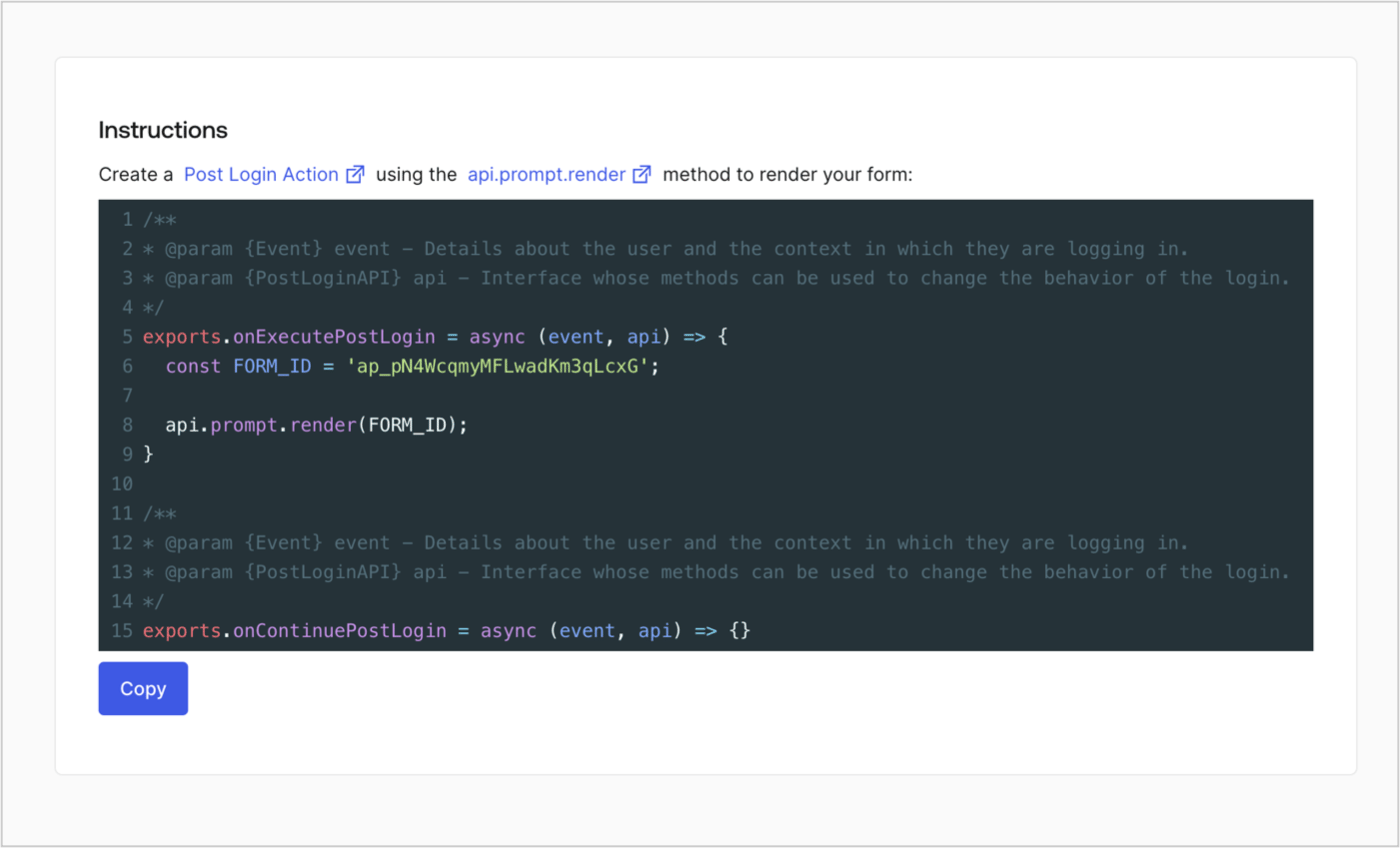
<Frame>
  <img src="https://mintcdn.com/docs-dev-fix-details-to-accordion-universal-components/jHBXk6QfX_R2PDPL/docs/images/cdy7uua7fh8z/2EIUzc539sq9lwoTKbjoJv/496a864c0fc44a782c9cadca119dbfb0/embed.png?fit=max&auto=format&n=jHBXk6QfX_R2PDPL&q=85&s=ee1c143e59aae6940456191dd8059e79" alt="Dashboard > Actions > Forms > Form > Embed" data-og-width="1400" width="1400" data-og-height="848" height="848" data-path="docs/images/cdy7uua7fh8z/2EIUzc539sq9lwoTKbjoJv/496a864c0fc44a782c9cadca119dbfb0/embed.png" data-optimize="true" data-opv="3" srcset="https://mintcdn.com/docs-dev-fix-details-to-accordion-universal-components/jHBXk6QfX_R2PDPL/docs/images/cdy7uua7fh8z/2EIUzc539sq9lwoTKbjoJv/496a864c0fc44a782c9cadca119dbfb0/embed.png?w=280&fit=max&auto=format&n=jHBXk6QfX_R2PDPL&q=85&s=cef7da2ae4a83107ef10f1ffb83baf0e 280w, https://mintcdn.com/docs-dev-fix-details-to-accordion-universal-components/jHBXk6QfX_R2PDPL/docs/images/cdy7uua7fh8z/2EIUzc539sq9lwoTKbjoJv/496a864c0fc44a782c9cadca119dbfb0/embed.png?w=560&fit=max&auto=format&n=jHBXk6QfX_R2PDPL&q=85&s=338f77b97a0ff6f06837e604194361d1 560w, https://mintcdn.com/docs-dev-fix-details-to-accordion-universal-components/jHBXk6QfX_R2PDPL/docs/images/cdy7uua7fh8z/2EIUzc539sq9lwoTKbjoJv/496a864c0fc44a782c9cadca119dbfb0/embed.png?w=840&fit=max&auto=format&n=jHBXk6QfX_R2PDPL&q=85&s=0f0e4888559a1b1cae340bf8722ed351 840w, https://mintcdn.com/docs-dev-fix-details-to-accordion-universal-components/jHBXk6QfX_R2PDPL/docs/images/cdy7uua7fh8z/2EIUzc539sq9lwoTKbjoJv/496a864c0fc44a782c9cadca119dbfb0/embed.png?w=1100&fit=max&auto=format&n=jHBXk6QfX_R2PDPL&q=85&s=85ec988afd082cbf9091d4eb21808563 1100w, https://mintcdn.com/docs-dev-fix-details-to-accordion-universal-components/jHBXk6QfX_R2PDPL/docs/images/cdy7uua7fh8z/2EIUzc539sq9lwoTKbjoJv/496a864c0fc44a782c9cadca119dbfb0/embed.png?w=1650&fit=max&auto=format&n=jHBXk6QfX_R2PDPL&q=85&s=0caae8c630fe15765c284f9ecf25ee96 1650w, https://mintcdn.com/docs-dev-fix-details-to-accordion-universal-components/jHBXk6QfX_R2PDPL/docs/images/cdy7uua7fh8z/2EIUzc539sq9lwoTKbjoJv/496a864c0fc44a782c9cadca119dbfb0/embed.png?w=2500&fit=max&auto=format&n=jHBXk6QfX_R2PDPL&q=85&s=92572a4c53b641f4ce4cede391c074b6 2500w" />
</Frame>

## Create a Post Login Action

Create a post-login Action to render your form by following these steps:

1. Navigate to **Auth0 Dashboard > Actions > Flows > Login.**
2. Select the **+** icon and select **Build from scratch**:

   * **Name**: Enter `Render Progressive Profile Form`.
   * **Trigger**: Select `Login / Post Login`.
   * **Runtime**: Select the recommended version.
3. Select **Create**.

To configure the post-login Action:

1. Delete the existing code from the Code editor.
2. Paste the form embed code into the Code editor.
3. Edit the code to define the conditional logic that will render the form.

   ```javascript lines theme={null}
   /**
   * @param {Event} event - Details about the user and the context in which they are logging in.
   * @param {PostLoginAPI} api - Interface whose methods can be used to change the behavior of the login.
   */
   exports.onExecutePostLogin = async (event, api) => {
     const FORM_ID = 'REPLACE_WITH_YOUR_FORM_ID';

     if (
       event.stats.logins_count > 2 &&
       !event.user.user_metadata.company_name &&
       !event.user.user_metadata.job_title
     ) {
       api.prompt.render(FORM_ID);
     }
   }

   exports.onContinuePostLogin = async (event, api) => { }
   ```

   <Callout icon="file-lines" color="#0EA5E9" iconType="regular">
     The example code above will render the form when a user has a login count > 2 and is missing the user metadata company\_name and job\_title properties.
   </Callout>
4. Select **Deploy.**
5. Drag and Drop the **Render Progressive Profile Form** Action to the **Login** flow.
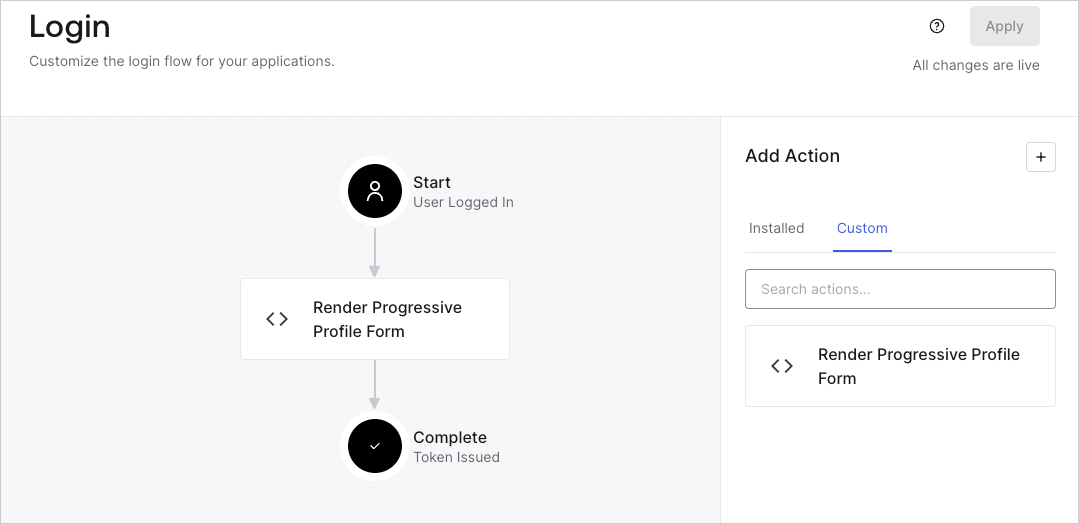
   <Frame>
     <img src="https://mintcdn.com/docs-dev-fix-details-to-accordion-universal-components/3UmLuJrQNnutHkV-/docs/images/cdy7uua7fh8z/1QjjZdpTqTxx012UDN4xk9/99fba5ef4068a5688f1762eea7f42976/renderprogessiveprofile.png?fit=max&auto=format&n=3UmLuJrQNnutHkV-&q=85&s=370e3530cec3f8b133164fa5c8f8a482" alt="Dashboard > Forms > Use Cases Progressive Profile Login Action" data-og-width="1079" width="1079" data-og-height="524" height="524" data-path="docs/images/cdy7uua7fh8z/1QjjZdpTqTxx012UDN4xk9/99fba5ef4068a5688f1762eea7f42976/renderprogessiveprofile.png" data-optimize="true" data-opv="3" srcset="https://mintcdn.com/docs-dev-fix-details-to-accordion-universal-components/3UmLuJrQNnutHkV-/docs/images/cdy7uua7fh8z/1QjjZdpTqTxx012UDN4xk9/99fba5ef4068a5688f1762eea7f42976/renderprogessiveprofile.png?w=280&fit=max&auto=format&n=3UmLuJrQNnutHkV-&q=85&s=421a3f795fff1bcc177f16eda85f9ee1 280w, https://mintcdn.com/docs-dev-fix-details-to-accordion-universal-components/3UmLuJrQNnutHkV-/docs/images/cdy7uua7fh8z/1QjjZdpTqTxx012UDN4xk9/99fba5ef4068a5688f1762eea7f42976/renderprogessiveprofile.png?w=560&fit=max&auto=format&n=3UmLuJrQNnutHkV-&q=85&s=0be3bb6aa7b64529f35d13a32026af36 560w, https://mintcdn.com/docs-dev-fix-details-to-accordion-universal-components/3UmLuJrQNnutHkV-/docs/images/cdy7uua7fh8z/1QjjZdpTqTxx012UDN4xk9/99fba5ef4068a5688f1762eea7f42976/renderprogessiveprofile.png?w=840&fit=max&auto=format&n=3UmLuJrQNnutHkV-&q=85&s=a17b17efa1ab3e30ea15c802e4d1eee0 840w, https://mintcdn.com/docs-dev-fix-details-to-accordion-universal-components/3UmLuJrQNnutHkV-/docs/images/cdy7uua7fh8z/1QjjZdpTqTxx012UDN4xk9/99fba5ef4068a5688f1762eea7f42976/renderprogessiveprofile.png?w=1100&fit=max&auto=format&n=3UmLuJrQNnutHkV-&q=85&s=73ce2889b788f1587264930e626af60f 1100w, https://mintcdn.com/docs-dev-fix-details-to-accordion-universal-components/3UmLuJrQNnutHkV-/docs/images/cdy7uua7fh8z/1QjjZdpTqTxx012UDN4xk9/99fba5ef4068a5688f1762eea7f42976/renderprogessiveprofile.png?w=1650&fit=max&auto=format&n=3UmLuJrQNnutHkV-&q=85&s=185eb415fed6daf53dac2a47c058b948 1650w, https://mintcdn.com/docs-dev-fix-details-to-accordion-universal-components/3UmLuJrQNnutHkV-/docs/images/cdy7uua7fh8z/1QjjZdpTqTxx012UDN4xk9/99fba5ef4068a5688f1762eea7f42976/renderprogessiveprofile.png?w=2500&fit=max&auto=format&n=3UmLuJrQNnutHkV-&q=85&s=10acaea2fb4e0568841f6e1b43fa9dda 2500w" />
   </Frame>
6. Select **Apply**.

### Test implementation

Test the implementation by following these steps:

1. Log in with an existing user whose login count is greater than 2 and their `user_metadata` attributes `company_name` and `job_title` have no values.
2. The post-login action in the Login flow will render the form and prompt for the information.
3. Select **Auth0 Dashboard > User Management > Users,** locate the user and verify that the `user_metadata` attributes `company_name` and `job_title` contain information.
